1. Home
  2. Presales
  3. How to Change MySQL Database Password
  1. Home
  2. Presales
  3. How to Change MySQL Database Password

How to Change MySQL Database Password

The details will need to match in both the configuration file and in the MySQL Database section of cPanel.

Step 1 – Log in to cPanel and click on the MySQL Databases icon
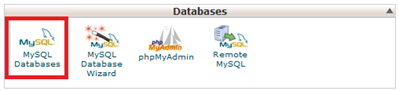
Step 2 – Click on the Set Password icon

Step 3 – Insert the new password twice then click Change Password
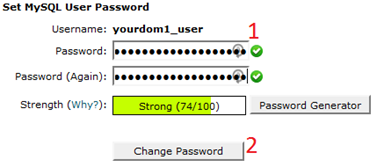
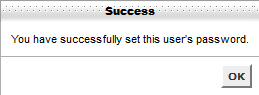
When you see this box, it means the password has changed successfully!
Updated on April 15, 2020

Was this article helpful?

WordPress database error: [Disk full (/tmp/#sql-temptable-1-23f8cf-79c8.MAI); waiting for someone to free some space... (errno: 28 "No space left on device")]
SHOW FULL COLUMNS FROM `wp_options`

WordPress database error: [Disk full (/tmp/#sql-temptable-1-23f8cf-79c9.MAI); waiting for someone to free some space... (errno: 28 "No space left on device")]
SHOW FULL COLUMNS FROM `wp_postmeta`